How to Copy Blank Text and Choose an Invisible Character
Copy blank text in your browser, compare Hangul Filler, Braille Pattern Blank and Zero Width Space, and understand why acceptance varies.
On this page
To copy blank text, you can select only the character between the brackets, [ㅤ], or simply click the “Copy Invisible Character” button. If your browser does not allow clipboard operations via script, expand the manual copy box, select its invisible contents, and copy them manually. For Windows, use Ctrl+C; for Mac, Cmd+C.
CopyBlank’s Copy and Paste Instructions
For the most part, this is what CopyBlank’s documentation describes:
Click the Copy Blank primary Copy Invisible Character button: one U+3164 (Hangul Filler)
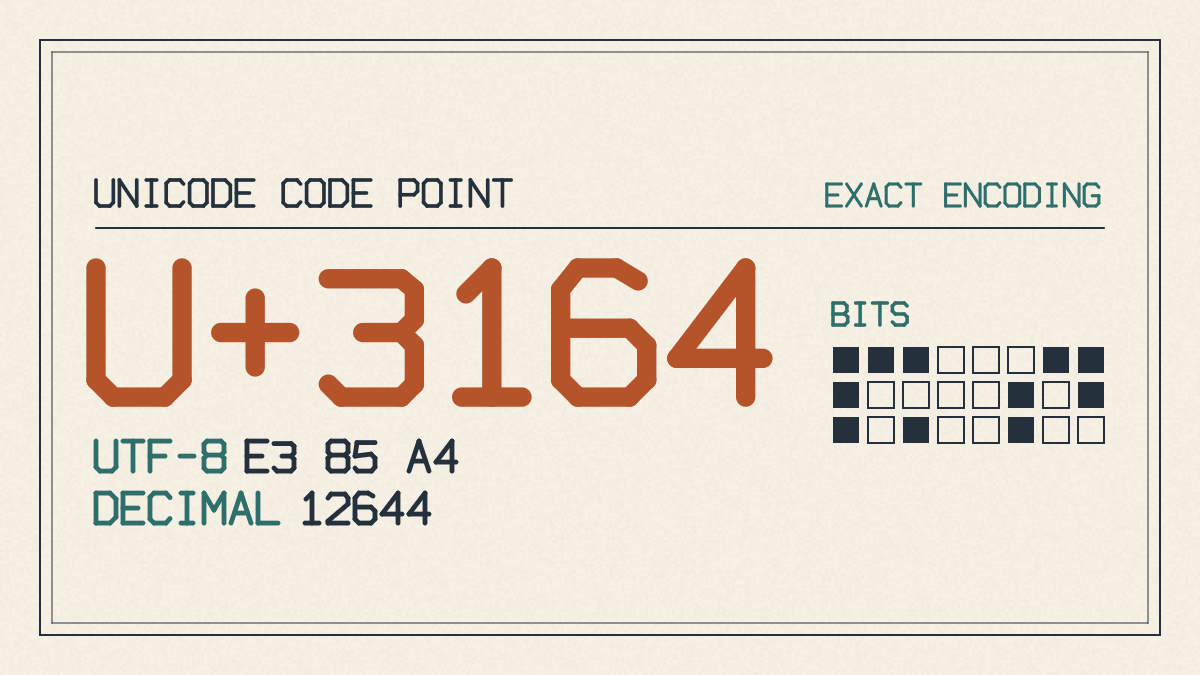
Alternatively, copy from the Manual copy box by selecting its highlighted contents
If you are unable to automatically copy to the clipboard because of restrictions by either your browser or your operating system, you will need to do some manual work
Windows copy: Ctrl+C
Mac copy: Cmd+C
Documented paste: Ctrl+V or mobile Paste
There may be additional undocumented workflows
These instructions have not been independently tested
Blank Text and Empty Strings
The difference between blank-looking text that appears empty and contains an encoded Unicode character and the same text field with no characters at all is subtle but important. When we say that there is a presence, it means that a Unicode character has been recognized by the computer, the browser, and the operating system. An empty string is one that contains no characters at all, not even an ordinary space (U+0020). The key difference here is whether the field appears to contain a character.
We can take a look at the actual example in CopyBlank. Here are two alternatives listed on the site: Braille Pattern Blank, U+2800 [⠀], and Zero Width Space, U+200B [].
The example above uses two different invisible characters, both of which were suggested in the site’s examples. First, the example uses a blank Braille cell, U+2800. But if you look closely, the second option is another invisible character: zero-width alternative, U+200B.
Let’s compare them to see what the differences might mean. We’ll test both of these against a trial invisible character intended for the field where we’ve placed our copyable invisible text. You should see the following:
U+3164 Hangul Filler: CopyBlank’s default invisible character
U+3164: generally blank or space-like in many interfaces
rendering varies depending on your platform
acceptance varies depending on the application
U+2800 Braille Pattern Blank: blank 8-dot Braille cell
U+200B Zero Width Space: no horizontal width
unsuitable as a visible spacer
No universally accepted option
One thing that you can note is that, although the first two options may appear very similar, they are actually quite different. However, both are invisible characters.
Using the Invisible Character Tester
As I mentioned before, CopyBlank provides a built-in Invisible Character Tester to determine if you have correctly copied an invisible character. This can also be used to determine if an invisible character exists. Simply paste any content you wish to test within the text area and check the character count shown by the tester.
However, you should note that just because a hidden character exists in this tester doesn’t mean that it will be accepted elsewhere. That’s why, if you want to make sure that the invisible character is copied properly, you must paste it into the destination application where you’re using it. If necessary, you can perform an extra check to confirm that the paste action did produce an effect. In addition, you can count the number of characters you expect to receive when performing a copy operation, so you can know whether you have received the correct number of characters after you perform a paste operation. This can be helpful, especially if you’re copying something into a form, or game submission screen, or otherwise somewhere that requires exactness.
Checking What the Destination Accepts
Ultimately, though, you’ll have to ensure that the final destination accepts what you’re providing. Applications and games that submit data often have their own validation rules about what they accept and reject. Some applications and games even strip out unrecognized Unicode characters, zero-width joiners, or specific formatting codes before submitting data to the server or database. That means you should verify the behavior of your chosen application and game after saving or submitting. It’s also possible that those rules might vary from device to device, or across operating systems and browsers, so you shouldn’t assume that what works on your device will work everywhere else.
That said, I would like to offer my personal preference of the two options presented: the Hangul Filler. Not only is it more likely to be rendered without problems, but it’s also the option that’s currently being used by CopyBlank, the website that started this discussion.